How to Build a Raspberry Pi Home Server with Tailscale VPN and Fritz!Box
Step-by-step guide to building a secure Raspberry Pi home server with Tailscale VPN and Fritz!Box, including remote file storage with Garage and Armadietto.


So my friend Michael has been trying to make me engange with the topic of Raspberry Pi and home servers for a while now. We finally found a day where we could invest some time together, and it was pretty fun. This article tells you the experience from getting the Raspberry Pi until having a server running at home. The model was Raspberry PI 4 Model B.
Raspberry Pi Home Server Hardware and OS Setup
The first thing we did was to install the Image of the OS in the Raspberry Pi. We used the Raspberry Pi Imager, which is a tool that allows you to easily install an operating system on your Raspberry Pi. We named it home-server, we chose our username (manuel), added a cool password and we connected to the same WLAN.
Secure Remote Access with Tailscale VPN
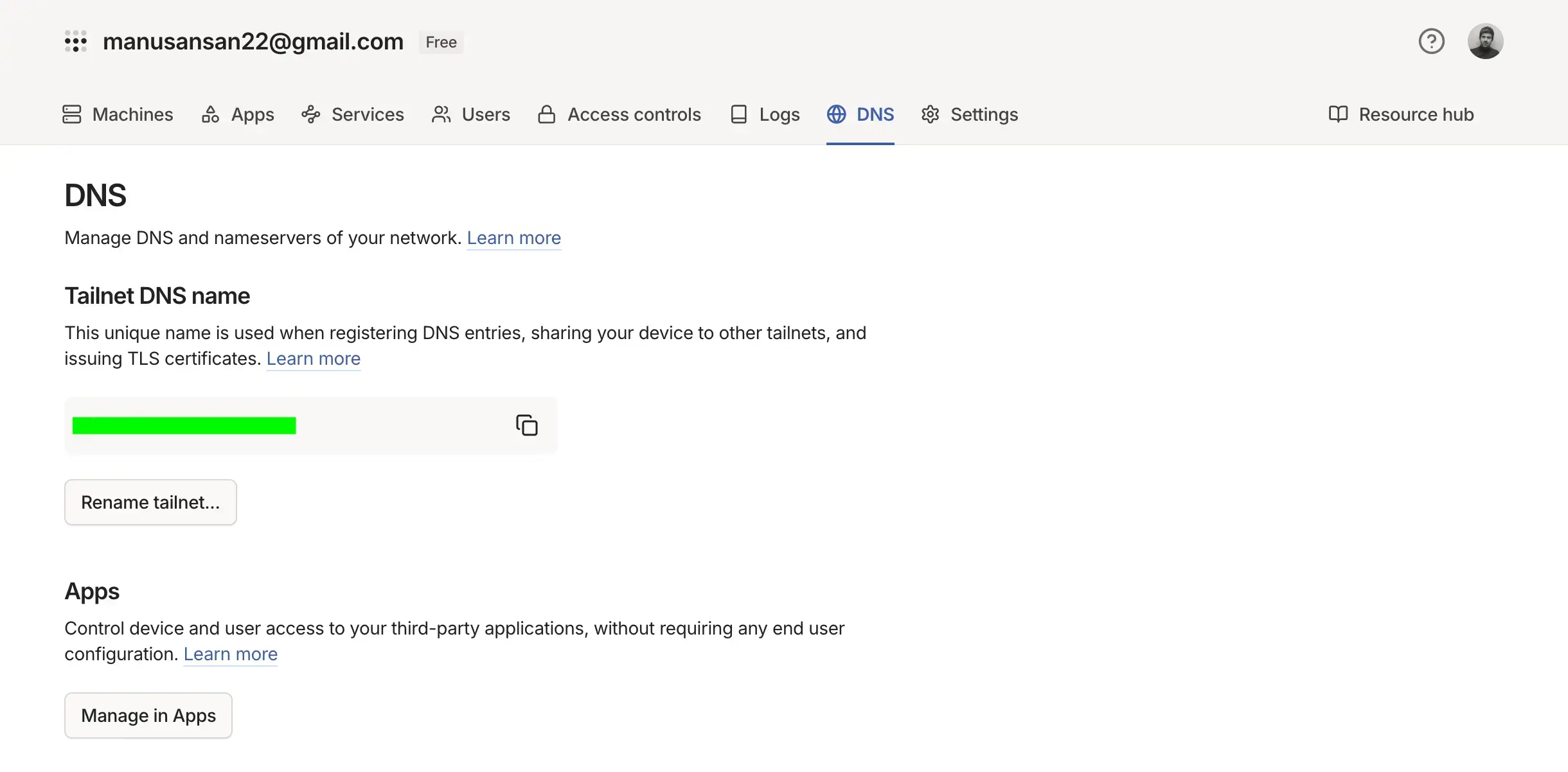
Since we want to connect to the server even when we are not at home in the WLAN, we needed a VPN. We used Tailscale, which is a zero-configuration VPN that makes it easy to connect to your devices from anywhere. It is a great choice for home servers because it is easy to set up and use. In the DNS tab you can change the Tailscale DNS name, which is the name you will use to connect to your server. Let’s imagine we used raspberrypi-ice.ts.net.
Accessing the Raspberry Pi via SSH
To connect to the Raspberry Pi, we can use SSH. But before doing that, we need the IP address of the Raspberry Pi. In my case, we are using Fritz!Box, so we can go to the router interface and check the connected devices. We found the IP address of the Raspberry Pi, which was something like 192.168.XXX.YY.
Now we can open a terminal and connect to the Raspberry Pi using SSH. The command is:
ssh manuel@192.168.XXX.YY
We will be prompted to enter the password we set during the installation of the OS. Once we are connected, we can start installing the software we need for our home server!
Next, we installed Tailscale on the Raspberry Pi. The installation process is straightforward, and we can follow the instructions on the Tailscale website. After installing Tailscale, we need to authenticate the device by running:
curl -fsSL https://tailscale.com/install.sh | sh
Setting Up S3 Storage with Garage and Armadietto
We decided that we did not want to have Docker installed on the Raspberry Pi, because we had 4 GB of RAM, and we wanted to keep it light. Our goal was to have some remote storage and a web server running, so after reading a bit, we realized we could use garage, caddy and armadietto for that.
We needed all this because we wanted to do some stuff with remoteStorage, but you definitely do not need all of this for a simple home server.
Let’s see however how each of them works.
-
Garage: Garage is a simple and lightweight file server that allows us to share files over the network. It is easy to set up and use, and it supports various protocols like SMB, NFS, and FTP. We can install Garage by following the instructions on the Garage page
-
Armadietto: Armadietto is a lightweight and easy-to-use web-based file manager that allows us to manage our files on the server. It has a simple and intuitive interface, and it supports various features like file uploads, downloads, and sharing. We can install Armadietto by following the instructions on the Armadietto GitHub page. Armadietto is the implementation of the RemoteStorage protocol, which “is an open protocol for per-user storage on the web”.
After a few hours of configuration, we finally had something running. We could access our files from anywhere using Tailscale, and we had a web server running with Armadietto.
Armadietto and Garage are using S3 behind the scenes, so we needed to set up an S3-compatible storage.
In the root of the Raspberry Pi, we added two files: garage.toml, .env and server.js.
To get the S3 credentials, we used Garage to create a new user and a new app key. We ran the following commands:
cat > garage.toml <<EOF
metadata_dir = "/tmp/meta"
data_dir = "/tmp/data"
db_engine = "sqlite"

replication_factor = 1

rpc_bind_addr = "[::]:3901"
rpc_public_addr = "127.0.0.1:3901"
rpc_secret = "$(openssl rand -hex 32)"

[s3_api]
s3_region = "garage"
api_bind_addr = "[::]:3900"
root_domain = ".s3.garage.localhost"

[s3_web]
bind_addr = "[::]:3902"
root_domain = ".web.garage.localhost"
index = "index.html"

[k2v_api]
api_bind_addr = "[::]:3904"

[admin]
api_bind_addr = "[::]:3903"
admin_token = "$(openssl rand -base64 32)"
metrics_token = "$(openssl rand -base64 32)"
EOF
We had to change the metadata_dir and data_dir to a path where we wanted to store the data. In our case, we used /home/manuel/garage/meta and /home/manuel/garage/data.
Then, we needed some S3 credentials to use with Armadietto. Run the following commands and keep the access key and secret key somewhere safe:
garage key create nextcloud-app-key
Now, we created the .env file with the following content:
# .env
S3_ENDPOINT=http://localhost:3900
S3_ACCESS_KEY=xxxxxxxxxxxxxxxxxxxx // the access key generated before
S3_SECRET_KEY=xxxxxxxxxxxxxxxxxxxxxxxxxxxxxxxxxxxxxxxxxxxxxxxxxxxxxxxxxxxxxxxx // the secret key generated before
S3_REGION=garage
JWT_SECRET=
BOOTSTRAP_OWNER=
PORT=3900
Finally, we created the server.js file with the following content:
// server.js
const path = require('path')
require('dotenv').config({ path: path.join(__dirname, '.env') })
const Armadietto = require('armadietto')
const type = process.argv[2]
const store = new Armadietto.FileTree({ path: path.join(__dirname, 'tree') })

const server = new Armadietto({
  store,
  http: {
    port: 80,
  },
  https: {
    force: true,
    host: 'home-server.raspberrypi-ice.ts.net',
    port: 443,
    key: '/home/manuel/home-server.raspberrypi-ice.ts.net.key', // I needed to generate a self-signed certificate for this
    cert: '/home/manuel/home-server.raspberrypi-ice.ts.net.crt', // I needed to generate a self-signed certificate for this
  },
  allow: {
    signup: true,
  },
  cacheViews: false,
})

console.log('LISTENING ON PORT 8000')
server.boot()
Running the Server with PM2
To keep the server running I have used pm2, which is a process manager for Node.js applications. It allows us to keep our application running in the background, and it also provides features like automatic restarts and log management. We can install pm2 by running:
npm install -g pm2
And then we can start our server by having two things running, garage and the server.js:
garage server
pm2 start server.js
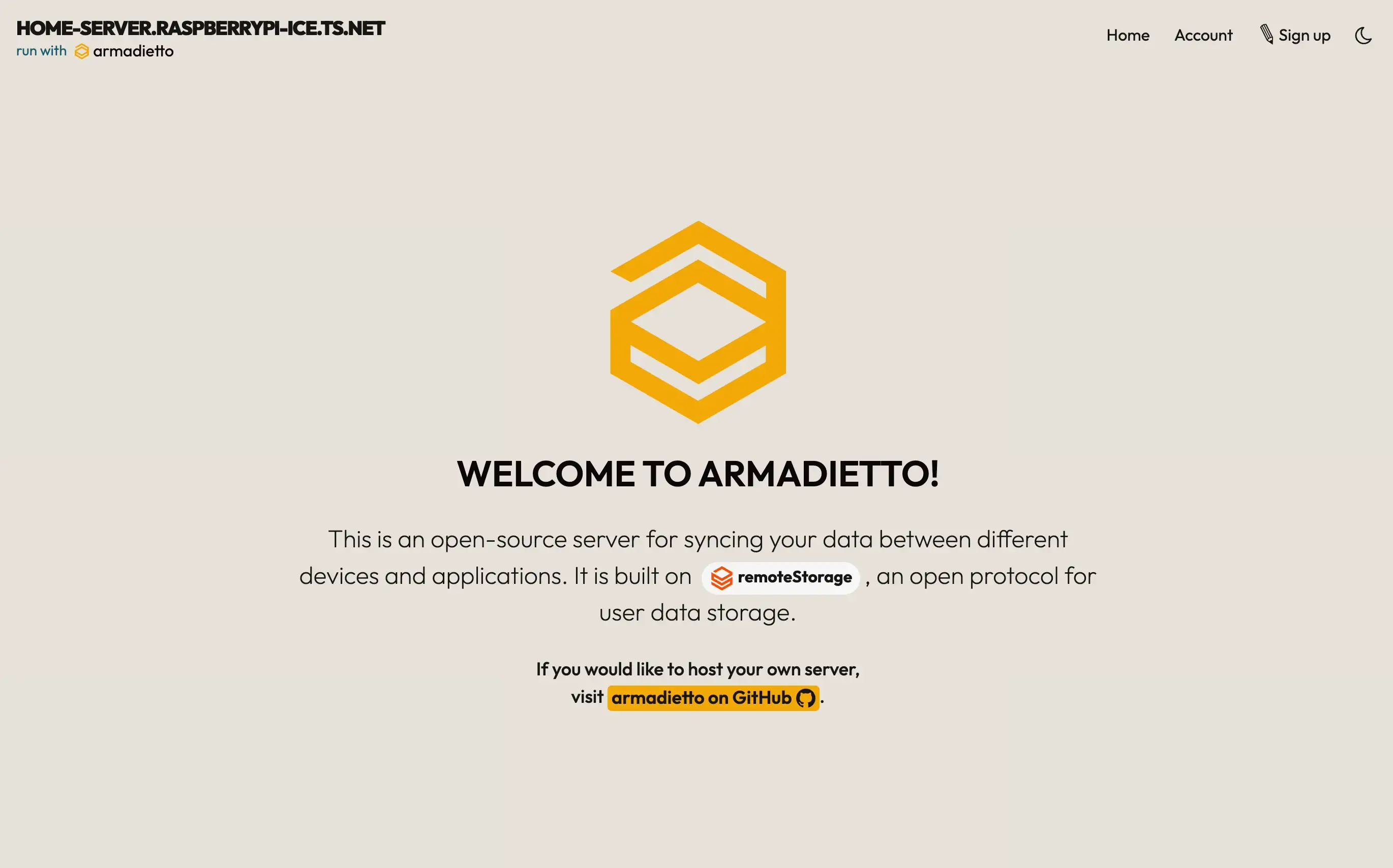
With this we had a server running in HTTPS under ‘https://home-server.raspberrypi-ice.ts.net/’.
Security Notes and Production Warnings
I think this is a good start for a home server, but not recommeded for production use. If you want to use it in production, you should use a proxi server like Caddy or Nginx to handle the HTTPS certificates and the routing, and not using Armadietto directly with ports 80 and 443, as they indicated in the documentation.
Conclusion and Next Steps
Next steps would be to set up Caddy as a reverse proxy in front of Armadietto, so we can handle the HTTPS certificates and the routing. But that is a topic for another day! Also Part 2 of this article will concern how to log into some of the projects that can use remoteStorage with our Armadietto server! Stay tuned for that!
Again, thank you so much, Michael, for introducing me to this world of Raspberry Pi and home servers! It was a fun day, and I learned a lot.
Share article