How a YubiKey Transformed My Security Practice: A Developer's Complete Setup Guide
A practical guide for macOS and Linux, including secure key strategy, common troubleshooting steps, and production-ready CLI examples.

Backend Developer at DIE ZEIT
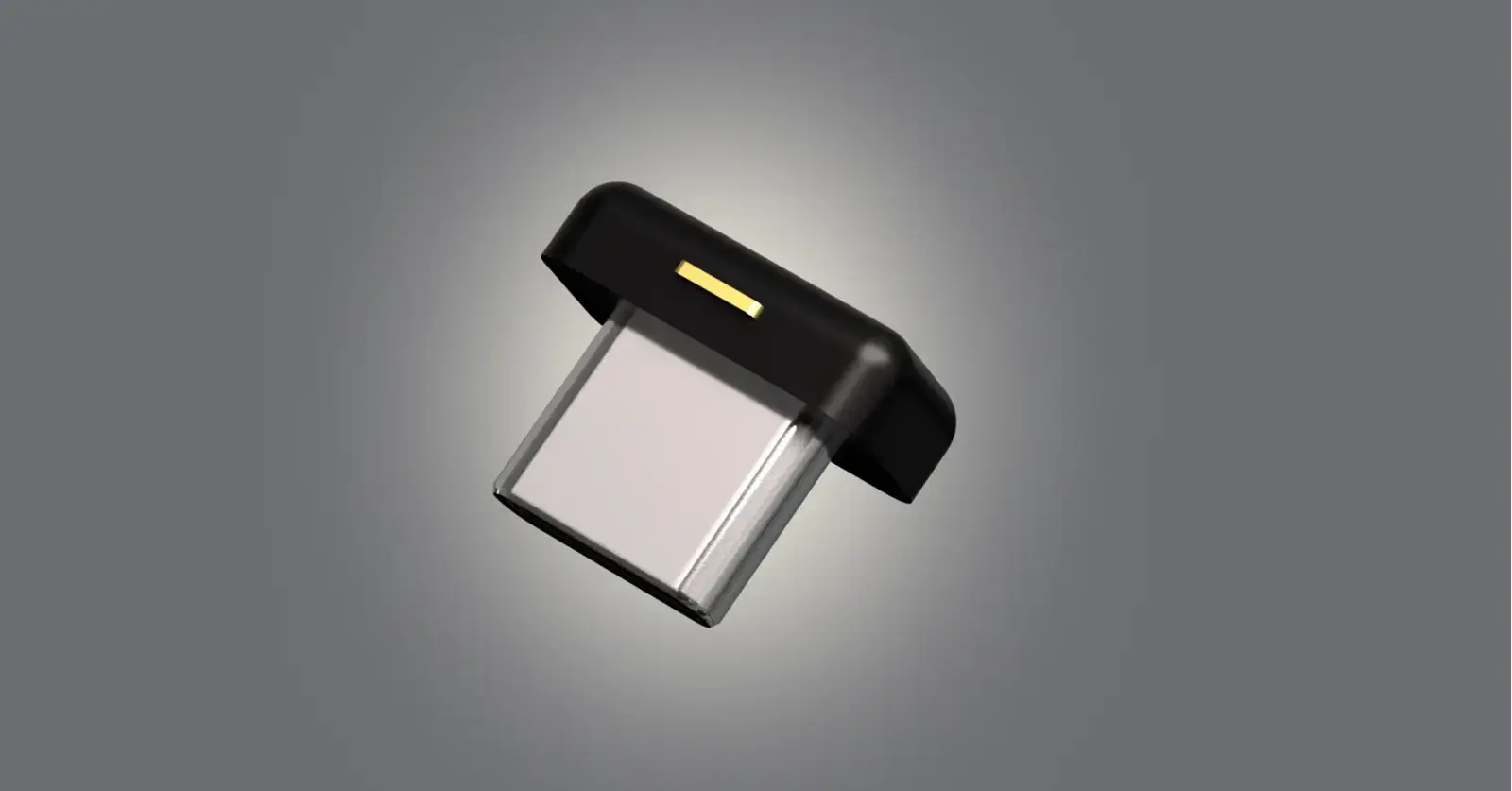
Why This YubiKey Guide?
A few years back, a fellow developer colleague who really knew GPG inside and out convinced me to grab a YubiKey. I’ll be honest—GPG encryption for email wasn’t really on my radar, but it became necessary for some security-focused work stuff.
But what really sold me was the convenience and security of using it for SSH access. Rather than keeping my private key just sitting on my computer, everything goes through the hardware token. That simple shift made me feel genuinely more secure.
These days, I use it for everything—signing all my git commits, authenticating with GitHub, and handling various authentication tasks. The YubiKey has honestly been a game changer for how I approach security in my daily workflow.
So if you’re curious about getting the most out of your YubiKey beyond basic 2FA, let’s walk through it together. Here’s what you’ll be able to do with a proper OpenPGP and SSH setup:
- cryptographically sign Git commits,
- harden SSH logins with hardware-backed authentication,
- keep sensitive key material out of your filesystem,
- and consolidate FIDO2/U2F plus TOTP on hardware.
This article is based on a real-world setup session inspired by Dr. Duh’s YubiKey Guide, adapted for practical team workflows.
Hardware Overview
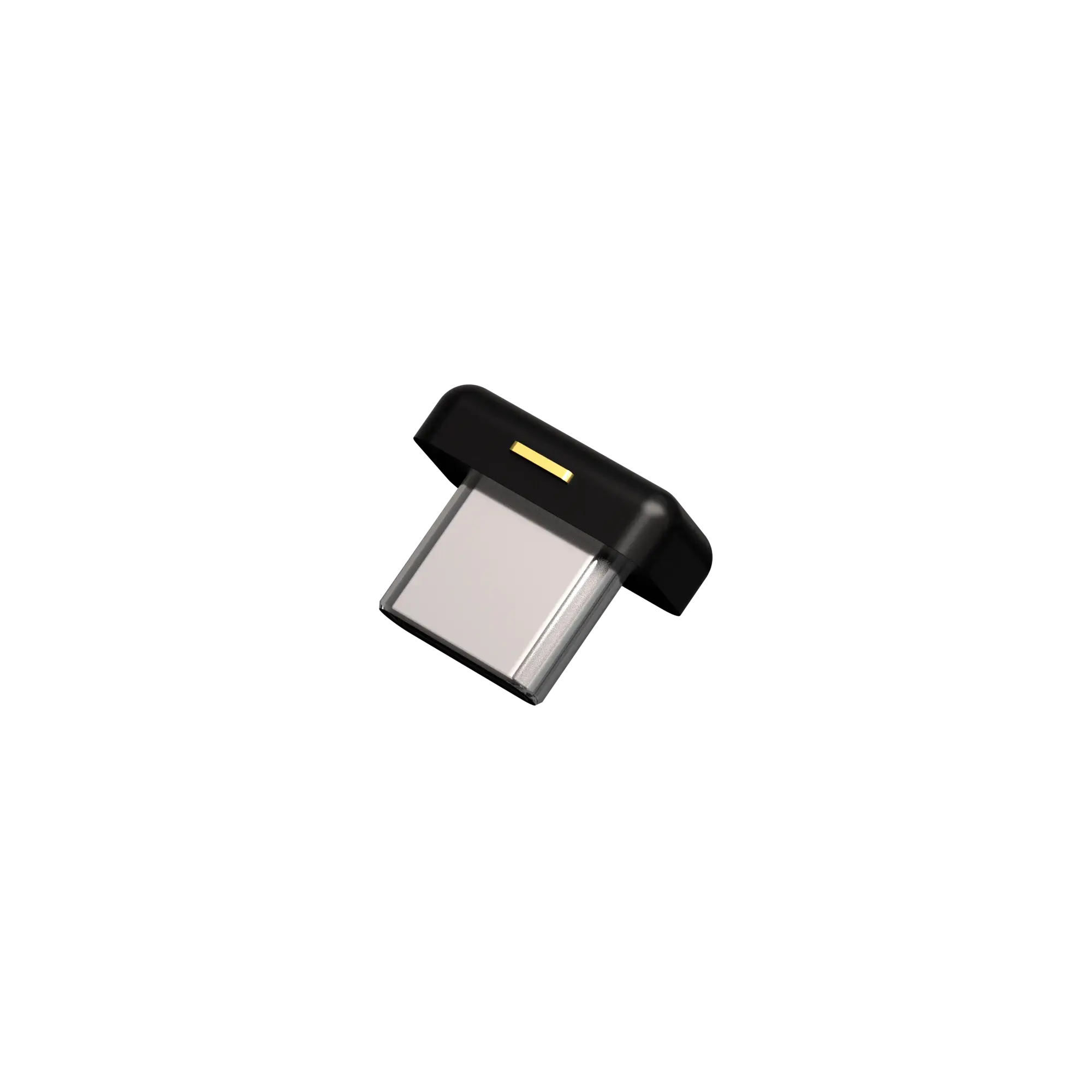
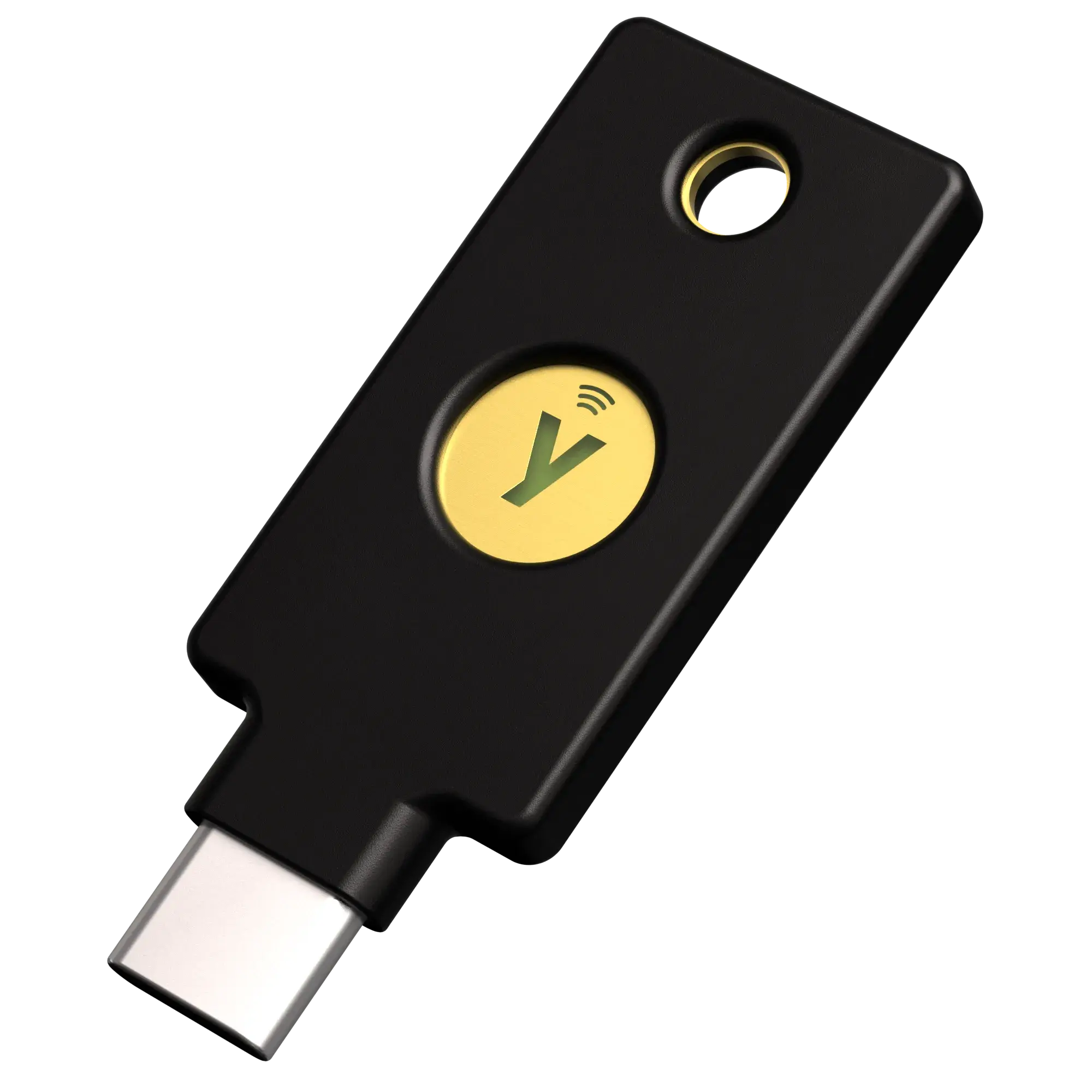
Important: This guide focuses on the YubiKey 5C series, which includes full OpenPGP support. These keys support GPG, SSH via gpg-agent, and FIDO2. If you’re considering a YubiKey, note that some models (like the FIDO2 Security Key) are limited to FIDO2/U2F and do not support OpenPGP—so they won’t work for the GPG and SSH workflows in this guide. Make sure you have a 5C or similar full-featured model.
| YubiKey 5C Nano | YubiKey 5C NFC |
|---|---|
 |  |
Copyright and trademark rights belong to Yubico AB.
- YubiKey 5C Nano image source: Yubico official resource CDN
- YubiKey 5C NFC image source: Yubico official resource CDN


Security Model: Master Key Offline, Subkeys on the YubiKey
The most important decision is architectural:
- Main key (offline, air-gapped): stored on secure media, not on your daily workstation.
- Subkeys (on YubiKey): used for day-to-day SSH, Git, and GPG operations.
This reduces the blast radius of device loss while preserving a reliable recovery path.
1) Install Prerequisites
# macOS (Homebrew)
brew install gnupg yubikey-personalization ykman pinentry-mac

# Debian/Ubuntu
apt-get install gnupg2 yubikey-personalization scdaemon

# Verify installation
gpg --version
ykman --version
Then check that your YubiKey hardware token is detected:
ykman list
ykman info
ykman info | grep Firmware
Verify authenticity directly with Yubico: Verify your YubiKey.
2) Initial Setup: Change Default PINs Immediately
# Update OpenPGP PIN/PUK/Admin PIN
gpg --card-edit
> admin
> passwd
> 1   # Change user PIN (default: 123456)
> 3   # Change admin PIN (default: 12345678)
> q

# Increase retry counters
ykman openpgp access set-retries 5 5 5 -f -a "$ADMIN_PIN"
Important: too many failed attempts can lock the OpenPGP applet.
3) Set Card Identity Fields
gpg --card-edit
> admin
> name
> lang
> login
> quit
4) Generate GPG Keys in an Air-Gapped Environment
There are multiple valid ways to generate GPG materials. For the full approach matrix, see Dr. Duh’s guide: Prepare environment.
In this guide, we follow the air-gapped generation approach from that ranking.
- Why we use this flow: strongest balance of security, backup capability, and incident recovery.
- Important condition: run key generation in a controlled, offline, trusted air-gapped environment and document the process.
Create the Certify key
The Certify key is the primary key. It is responsible for issuing the three Subkeys (sign, encrypt, auth) and for revoking them if needed. It should be kept offline at all times — only brought out to manage Subkeys. Do not set an expiration date on it.
gpg --batch --pinentry-mode loopback --passphrase "your-certify-passphrase" --quick-generate-key "Your Name <you@example.com>" ed25519 cert never
Capture the key fingerprint once and reuse it in the next steps:
KEY_FPR=$(gpg -k --with-colons "Your Name" | awk -F: '/^fpr:/ { print $10; exit }')
echo "$KEY_FPR"
This stores the 40-character fingerprint in KEY_FPR (for example AB12CD34...).
Create Subkeys (sign, encrypt, auth)
Add one subkey per capability — these are the keys that live on the YubiKey day-to-day:
I set the subkey expiration to 2y here on purpose: it is a practical rotation window that balances security and maintenance effort.
gpg --batch --pinentry-mode loopback --passphrase "your-certify-passphrase" --quick-add-key "$KEY_FPR" ed25519 sign 2y
gpg --batch --pinentry-mode loopback --passphrase "your-certify-passphrase" --quick-add-key "$KEY_FPR" cv25519 encr 2y
gpg --batch --pinentry-mode loopback --passphrase "your-certify-passphrase" --quick-add-key "$KEY_FPR" ed25519 auth 2y
Transfer keys to the YubiKey
Role summary: Signing proves authorship/integrity, encryption protects content for recipients, and authentication proves identity (commonly used for SSH via gpg-agent).
Ultra-compact: move the three subkeys (typically key 1 = sign, key 2 = encrypt, key 3 = auth) onto the OpenPGP card slots 1/2/3:
# Inside the same `gpg --edit-key "$KEY_FPR"` session:
> key 1
> keytocard
> 1   # Signature key
> key 2
> keytocard
> 2   # Encryption key
> key 3
> keytocard
> 3   # Authentication key
> save
If your subkey numbering differs, run gpg --edit-key "$KEY_FPR" and use key N to select the correct subkey before keytocard.
5) Enable SSH Through gpg-agent
# ~/.gnupg/gpg-agent.conf
enable-ssh-support

# Restart agent
gpgconf --kill gpg-agent
gpgconf --launch gpg-agent

# Shell profile (~/.zshrc or ~/.bashrc)
export SSH_AUTH_SOCK=$(gpgconf --list-dirs agent-ssh-socket)
Export the SSH public key:
gpg --export-ssh-key YOUR_EMAIL > ~/.ssh/yubikey.pub
ssh-copy-id -i ~/.ssh/yubikey.pub user@remote-host
6) Git Commit Signing with YubiKey
git config --global user.signingkey "$KEY_FPR"
git config --global commit.gpgsign true
git config --global gpg.program gpg

git commit -S -m "Signed commit"
Daily verification:
gpg --card-status
ssh-add -L
echo "test" | gpg --clearsign
7) Best Practices for Long-Term Secure Usage
- Plan a backup YubiKey: same key material, stored separately.
- Store the revocation certificate safely: incident response is painful without it.
- Define a PIN/admin PIN policy: strong, unique, and documented in your password manager.
- Test regularly: not only the primary key, but also the recovery path.
8) Troubleshooting (Most Common Issues)
YubiKey Is Not Detected
gpgconf --kill gpg-agent
ykman list
ls -la /dev | grep usb
SSH Is Not Working
echo "$SSH_AUTH_SOCK"
gpgconf --list-dirs agent-ssh-socket
gpgconf --kill gpg-agent
source ~/.zshrc   # or ~/.bashrc
PIN Is Locked
Unlock with the admin PIN or, if needed, reinitialize the OpenPGP applet (destructive).
9) Advanced Usage: FIDO2, PIV, OATH-TOTP
- FIDO2/WebAuthn: ideal for GitHub, Google, Microsoft, and other major services.
- PIV/Smart Card: often relevant for enterprise login, VPN, and certificate-based auth.
- OATH-TOTP: keep 2FA secrets on hardware instead of only on a phone.
Quick TOTP Example (with YubiKey)
# 1) Add a TOTP account to the YubiKey (Base32 secret from your provider)
ykman oath accounts add github-work JBSWY3DPEHPK3PXP

# 2) List stored OATH accounts
ykman oath accounts list

# 3) Generate the current 6-digit TOTP code
ykman oath accounts code github-work
This way, the TOTP secret is stored on your YubiKey instead of your phone authenticator app.
Quick Password Store Example (gopass + YubiKey)
If your GPG subkeys are on your YubiKey, you can use that same setup for password management with gopass.
# 1) Initialize a gopass store with your GPG key
gopass init YOUR_GPG_KEY_ID

# 2) Save a password
gopass insert infra/github

# 3) Read it later (requires YubiKey touch/PIN depending on your policy)
gopass show infra/github
NFC on Mobile (iPhone and Android)
- iPhone (NFC): Tap your YubiKey 5C NFC to use supported apps/services via NFC.
- Android (NFC): Tap your YubiKey 5C NFC to authenticate in supported apps/services.
- Official device/app compatibility and setup details: Yubico mobile + NFC docs.
Conclusion
A YubiKey setup is not only a security topic, it is also a productivity and reliability lever: less key chaos, clearer trust boundaries, and reproducible team workflows. If you combine GPG, SSH, Git signing, and FIDO2 cleanly, you get significantly stronger security without day-to-day friction.
FAQ about YubiKey, GPG, SSH, and Git Signing
Immediately change default PINs and set card identity fields. This prevents trivial attacks against factory defaults.
Further Resources
Share article