Game Feel: 20 Principles Behind the Invisible Polish, Animated (with Godot Examples)
The 20 principles of game feel, from coyote time to hit stop and i-frames, each shown with a side-by-side WITHOUT vs. WITH animation and practical Godot 4 examples.

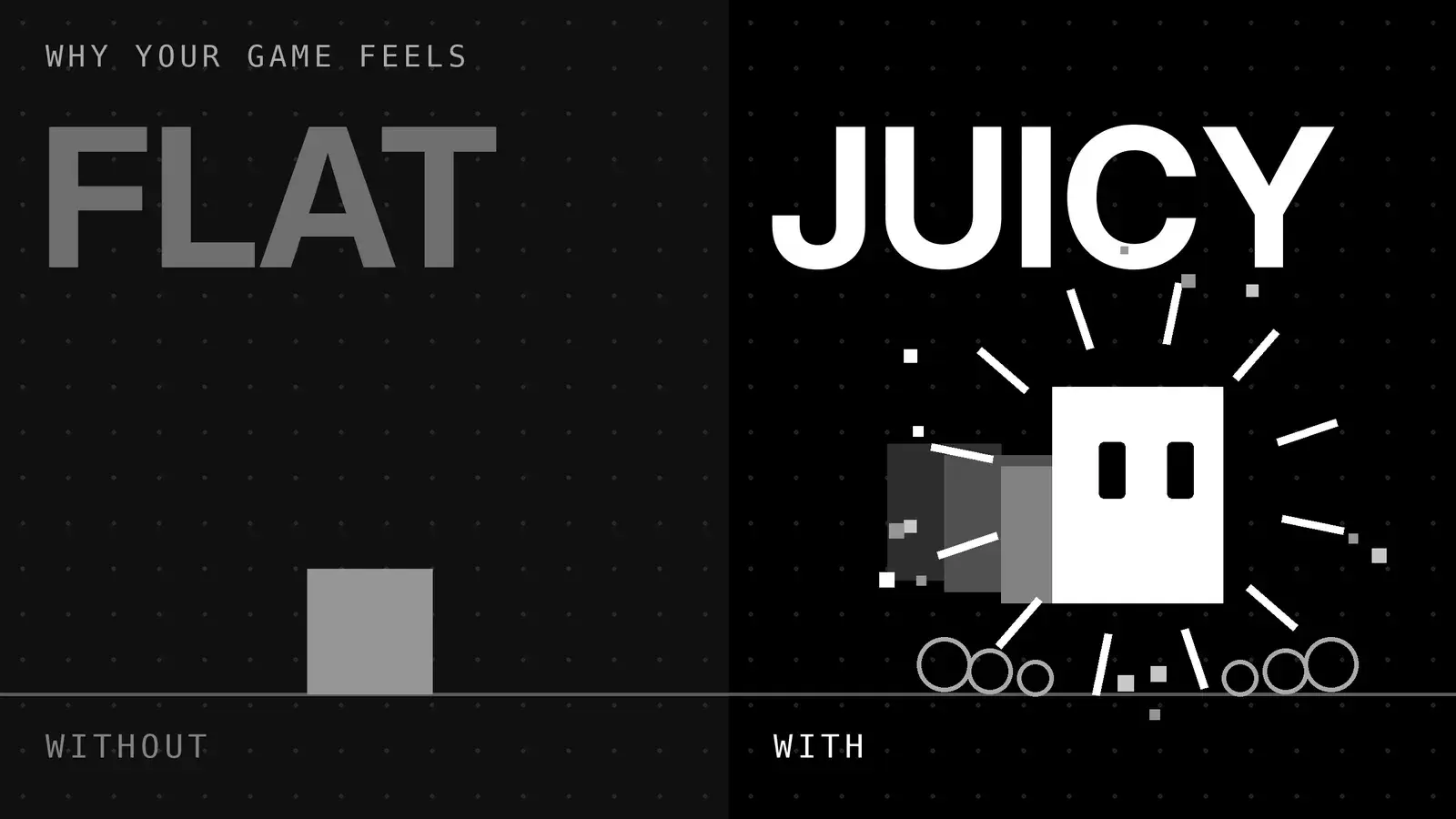
Why does one game feel amazing in your hands, while another one with exactly the same mechanics feels flat? Most of the time, the answer is game feel: all the small details that nobody notices until they’re missing.
I make precision platformers, so for me this isn’t theory. A jump pressed two frames too late, a hit without any weight or a camera that hides the next spike can ruin a level that looks perfect on paper.
I don’t remember one exact moment when game feel “clicked” for me. It’s more something we’ve been seeing again and again over the years, and every time we get the chance, we add it. In our last game jam entry, Litterbug, you fly a rocket that has to dodge the trash it drops itself (a bit like Snake). Score popups, combos, particles, shake, flashes: a good part of this article is in there somewhere.
Recently I came across a great 12 Principles of Game Feel infographic by Ali Farha and thought: this deserves animations. So I took his 12, added 8 more that I’d personally miss in any platformer, and made a small WITHOUT vs. WITH loop for each one. You’ll also find some Godot 4 snippets along the way, because I can’t help it.
How to read the animations: the left side is always WITHOUT the principle, the right side is WITH it. They’re short, muted loops that pause when they’re off-screen. Every clip has a pause button, and if your system is set to reduce motion, they won’t play until you press it (yes, I’m the accessibility guy, I had to).
What Is Game Feel?
Steve Swink, who literally wrote the book on it (Game Feel, 2008), describes it as:
Real-time control of virtual objects in a simulated space, with interactions emphasized by polish.
In practice, game feel lives in the tiny gap between your input and the game’s answer. None of the principles below change what your game does. They change how it feels while it does it. That’s also why they’re so easy to forget: a game without them still works.
I grouped the 20 principles into four families, because I think it’s easier to remember them that way:
- Control: does the game do what the player meant?
- Impact: do actions feel like they have force?
- Motion: do things move like they have weight and life?
- Feedback and fairness: does the game answer back, clearly and fairly?
1. Control: How the Game Feels in Your Hands
This is the family players notice the least and blame the most. Nobody writes a Steam review saying “the input buffer is too short”. They write “the controls are broken”.
Input Responsiveness
The time between pressing a button and seeing something happen. If there’s a couple hundred milliseconds of lag (a slow animation, too much smoothing, a long wind-up), the character feels heavy and disconnected, even if everything else is perfect.
In Godot, read the input in _physics_process and apply the velocity right away. If your design needs a wind-up animation, start moving during the animation, not after it.
Coyote Time and Input Buffering
I’m putting these two together because they solve the same problem from both sides: the player was almost on time.
Coyote time is a small grace period after you run off a ledge (usually around 0.1 seconds) where jumping still works. The name comes from Wile E. Coyote, who famously only falls once he looks down.
Input buffering is the opposite: you press jump a bit before landing, and instead of throwing that press away, the game remembers it for a few frames and jumps the moment you touch the ground.
Both are just two timers, so here they are in one snippet:
const COYOTE_TIME := 0.1
const JUMP_BUFFER := 0.12

var coyote_timer := 0.0
var buffer_timer := 0.0

func _physics_process(delta: float) -> void:
	if is_on_floor():
		coyote_timer = COYOTE_TIME
	else:
		coyote_timer -= delta
		velocity.y += gravity * delta

	if Input.is_action_just_pressed("jump"):
		buffer_timer = JUMP_BUFFER
	else:
		buffer_timer -= delta

	if buffer_timer > 0.0 and coyote_timer > 0.0:
		velocity.y = JUMP_VELOCITY
		buffer_timer = 0.0
		coyote_timer = 0.0 # so you can't jump twice inside the window

	move_and_slide()
Dimenshaper uses both. Before the demo was out on Steam (and on the Steam Deck), I tested them with a lot of people, and I stopped tweaking the values when most of them told me it felt good. In the end, that’s what matters: not whether it’s 0.1 or 0.12 seconds, but whether it feels good to the people playing.
If you want to go deeper, Maddy Thorson wrote a short article about these “forgiveness” tricks in Celeste: Celeste & Forgiveness. Worth the five minutes.
Variable Jump Height
Tap for a small hop, hold for a full jump. Sounds like a detail, but now the player isn’t just triggering a jump, they’re shaping the arc. In tight levels that’s the difference between precise control and hitting your head on every ceiling.
The classic way to do it is a jump cut: when the player releases the button while still going up, you cut the upward velocity.
const JUMP_CUT := 0.4

if Input.is_action_just_released("jump") and velocity.y < 0.0:
	velocity.y *= JUMP_CUT
Acceleration and Easing
How fast your character reaches top speed, and how fast it stops. Slow ramps feel like running on ice. Snappy ones feel tight. Same top speed, completely different game.
move_toward is your best friend here:
const MAX_SPEED := 220.0
const ACCEL := 1800.0
const DECEL := 2400.0

var direction := Input.get_axis("move_left", "move_right")
if direction != 0.0:
	velocity.x = move_toward(velocity.x, direction * MAX_SPEED, ACCEL * delta)
else:
	velocity.x = move_toward(velocity.x, 0.0, DECEL * delta)
Once you have separate values for accelerating, braking, turning around and moving in the air, you can tune the feel of a character for hours (ask me how I know: Dimenshaper has its own acceleration curves too).
2. Impact: Making Hits Land
This family is about force. When something hits, falls or explodes, you should feel it in your hands, even if your controller doesn’t vibrate.
Hit Stop
A tiny freeze at the moment of impact, usually between 3 and 6 frames. Attacker and target stop, the target flashes, and then the knockback kicks in. You’ll never consciously see it, but it’s a big part of why hits in good action games feel heavy.
func hit_stop(duration := 0.08) -> void:
	Engine.time_scale = 0.0
	# process_always, not in physics, ignore_time_scale = true
	await get_tree().create_timer(duration, true, false, true).timeout
	Engine.time_scale = 1.0
Freezing the whole game is the lazy version, and for a small project it’s totally fine. In bigger games you usually pause only the two characters involved, so the UI and the music keep going.
Camera Shake
A short shake when something heavy lands. The important part is that it fades out quickly. A shake that’s too long or too strong stops being feedback and becomes noise (and motion sickness, more on that later).
If you want to see how far a bit of shake can take a game, watch Jan Willem Nijman’s classic talk The Art of Screenshake. It’s from 2013 and still holds up.
For the implementation, I like the trauma model from Squirrel Eiserloh’s GDC talk on camera math: events add “trauma”, trauma decays over time, and the shake grows with trauma squared. Small hits stay subtle, big ones feel big.
extends Camera2D

@export var max_offset := 12.0
@export var decay := 2.5
var trauma := 0.0

func add_trauma(amount: float) -> void:
	trauma = minf(trauma + amount, 1.0)

func _process(delta: float) -> void:
	trauma = maxf(trauma - decay * delta, 0.0)
	var shake := trauma * trauma
	offset = Vector2(randf_range(-1.0, 1.0), randf_range(-1.0, 1.0)) * max_offset * shake
We used a lot of camera shake in Beyond the Spin, our entry for a jam with the theme “Spin to Win”. It’s a collection of minigames, and several of them shake the camera, like the very first one, where you play Michael Jackson and have to make him spin.
Knockback and Recoil
Every shot pushes the shooter back a bit, and every hit pushes the target away. Without this, bullets just disappear into enemies and you have to trust the damage numbers. With it, you can actually see the force.
func take_hit(from_position: Vector2, force := 260.0) -> void:
	var direction := (global_position - from_position).normalized()
	velocity += direction * force
Screen Flash
A quick white flash when you take damage. Combine it with a health bar that drops and then drains slowly (the gray part in the clip), and the player knows immediately what happened and how bad it was.
In Godot: a white ColorRect in a CanvasLayer, with its alpha tweened from 0.8 to 0 in about 0.12 seconds. Be careful with this one though. I’ll explain why in the accessibility section.
Slow Motion
Drop time to a fraction for half a second on a big moment, like the final hit on a boss. It’s basically a long, cinematic hit stop. The trick is to use it rarely, otherwise it stops being special very fast.
func slow_motion(scale := 0.2, hold := 0.6) -> void:
	Engine.time_scale = scale
	await get_tree().create_timer(hold, true, false, true).timeout
	var tween := create_tween().set_ignore_time_scale(true) # Godot 4.3+
	tween.tween_property(Engine, "time_scale", 1.0, 0.3)
3. Motion: Weight and Life
Most of this family comes from animation. Disney’s animators figured it out almost a hundred years ago, and it works just as well for a square made of eight pixels.
Squash and Stretch
Stretch the ball while it falls, squash it when it hits the ground. That’s it. You don’t touch the physics at all, and suddenly the ball has weight and energy instead of looking like a sticker sliding around.
func squash(sprite: Node2D, amount := Vector2(1.35, 0.7)) -> void:
	sprite.scale = amount
	var tween := create_tween().set_trans(Tween.TRANS_BACK).set_ease(Tween.EASE_OUT)
	tween.tween_property(sprite, "scale", Vector2.ONE, 0.18)
Call it when landing (squash) and when jumping (stretch, something like Vector2(0.75, 1.3)). Small tip: put the sprite’s origin at its feet, so it squashes into the floor instead of floating.
Weight and Physics
A heavy stone block shouldn’t fall and bounce like a rubber ball. When objects behave the way they look, players can read the world and predict what’s going to happen.
In Godot, give heavier objects stronger gravity and less bounce. With RigidBody2D that’s mass, gravity_scale and a PhysicsMaterial with low bounce. With CharacterBody2D, just expose gravity and bounciness per object type.
Anticipation
The wind-up before the action. An enemy that pulls back before charging is telling you what it’s about to do. Without it, you just get hit and it feels cheap. With it, you get a fair chance to react, and funnily enough, the attack even feels stronger because you saw it coming.
In Godot, I’d add a WINDUP state to the enemy’s state machine, with a clear pose, a sound and 0.3 to 0.6 seconds of duration. If you want harder enemies, make the wind-up shorter, not the attack faster.
Trails and Motion Blur
Fast objects can look like they’re teleporting between frames. A trail behind them shows speed and direction at a glance.
A Line2D that remembers the last positions is enough:
extends Line2D
# Add as a child of the moving node and set top_level = true

@export var max_points := 14

func _process(_delta: float) -> void:
	add_point(get_parent().global_position)
	if get_point_count() > max_points:
		remove_point(0)
Add a width_curve from 0 to 1 and a transparent-to-white gradient, and you get a nice tapering trail.
Appeal and Character
Give a plain square two eyes, let it blink, breathe and look around, and people start caring about it. I find this one fascinating, because it costs almost nothing.
The protagonist of Hexactly, our cozy hex puzzle game, is a small hexagon that blinks and that you can dress up with different skins. Even that little bit gives it some personality, but to be honest there’s still a lot of potential here: it could react when you merge tiles, look at the tile you’re about to touch, or get a bit nervous when the board is almost full.
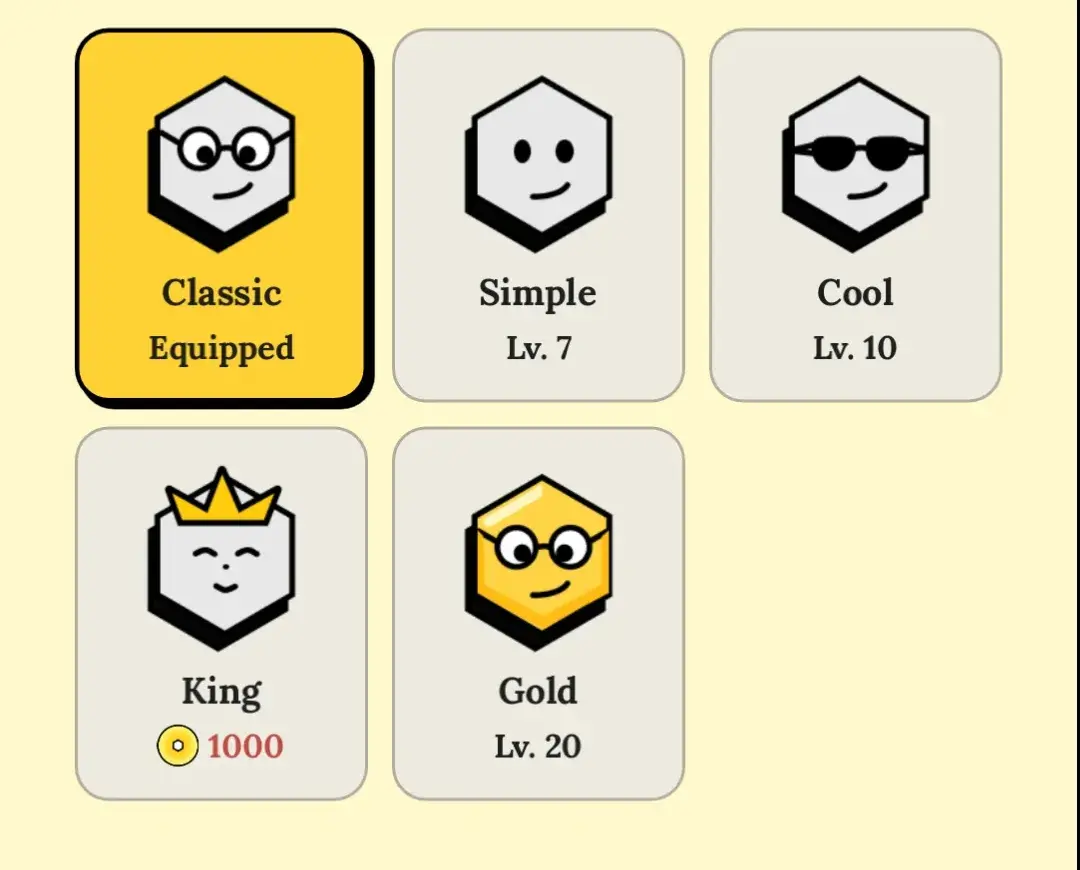
In Godot: a breathing idle (a tiny looping scale tween), a random blink timer and eyes that use look_at() or a clamped offset towards whatever they should look at.
4. Feedback and Fairness: The Game Answers Back
The last family is about communication. Every action should get a clear answer, and when the game punishes you, it should feel fair.
Juice
Juice means getting as much output as possible out of every input. Picking up a coin could just make it disappear. Or the coin can pop, burst into sparks, make your character hop and bump the score counter.
For me, juice isn’t one technique but more of a habit: for every event in your game, ask yourself “how could this answer the player a bit more?”. If you haven’t seen it yet, Juice It or Lose It by Martin Jonasson and Petri Purho is still the best demo of this idea.
Particle Effects
A few sparks, a puff of dust, some debris. Particles confirm that something happened and make the world react to you. Small, fast and short-lived usually works best.
const SPARKS := preload("res://fx/sparks.tscn")

func burst(at: Vector2) -> void:
	var particles: GPUParticles2D = SPARKS.instantiate()
	get_tree().current_scene.add_child(particles)
	particles.global_position = at
	particles.one_shot = true
	particles.emitting = true
	particles.finished.connect(particles.queue_free)
Audio Feedback
Try muting a game you love and play for five minutes. It instantly feels weaker. Sound carries a huge part of the impact. Layer a low thump, a crunchy mid and a short tail, and vary the pitch a little so it doesn’t get repetitive.
func play_varied(player: AudioStreamPlayer2D) -> void:
	player.pitch_scale = randf_range(0.92, 1.08)
	player.play()
Godot can also do this for you with an AudioStreamRandomizer, which randomizes pitch, volume and even which sample plays.
Camera Lookahead
A good camera doesn’t just follow the player, it looks ahead. If you’re running right, show more of what’s on the right. Add some smoothing so it doesn’t feel stiff, and players react to the level instead of to surprises.
extends Camera2D

@export var target: CharacterBody2D
@export var lookahead := 90.0
@export var smoothing := 4.0

func _process(delta: float) -> void:
	var lead := Vector2(signf(target.velocity.x) * lookahead, 0.0)
	offset = offset.lerp(lead, 1.0 - exp(-smoothing * delta))
If you’re also using the shake from before, add both offsets together instead of overwriting one with the other. And if you need cameras for cutscenes too, I wrote about a Godot 4 Camera Switcher a while ago.
Invincibility Frames
After you get hit, you blink for a moment and nothing can hurt you. Without i-frames, three projectiles in a row can kill you before you even understand what happened. With them, every hit is readable, and dying feels like your fault (which is exactly what you want).
@export var iframes_duration := 0.9
var invincible := false

func take_damage(amount: int) -> void:
	if invincible:
		return
	health -= amount
	invincible = true
	var blink := create_tween().set_loops(int(iframes_duration / 0.12))
	blink.tween_property($Sprite2D, "modulate:a", 0.2, 0.06)
	blink.tween_property($Sprite2D, "modulate:a", 1.0, 0.06)
	await get_tree().create_timer(iframes_duration).timeout
	invincible = false
Game Feel and Accessibility: Juice With an Off Switch
I work a lot with web accessibility, so I couldn’t write about screen shake and flashes without this part. The same effects that make a game feel great can make it unplayable for some people.
- Screen shake can cause motion sickness. Add a setting to reduce or turn it off. A multiplier on
max_offsetis literally one line. - Flashes can be dangerous for photosensitive players. Avoid more than three flashes per second, keep full-screen flashes short and not too intense, and let players disable them. The web has the same rule in WCAG (2.3.1 Three Flashes or Below Threshold), by the way.
- Slow motion and hit stop are usually fine, but they change timing, so keep them consistent for players who play by rhythm.
- Don’t rely on only one channel. Pair important sounds with something visual for players who are deaf or play muted, and the other way around.
In my own games I try to make all of these effects completely optional, without losing the rest of the experience: screen shake, chromatic aberration and flashes should all be possible to turn off. In Litterbug, for example, you can reduce the shake, the flashes and the flickering lines in the options.
Good game feel isn’t about maximum intensity. It’s about the right amount for each player.
Stack Them: A Quick Checklist
None of these is magic on its own. It gets interesting when you stack them: a jump with coyote time, buffering, variable height, squash and stretch, a dust puff and a soft landing sound feels like a different game than a plain jump, even though the mechanic is exactly the same.
| Principle | Family | Effort | Typical starting values |
|---|---|---|---|
| Input Responsiveness | Control | Low | React on the next frame |
| Coyote Time | Control | Low | 0.08–0.15 s |
| Input Buffering | Control | Low | 0.1–0.15 s |
| Variable Jump Height | Control | Low | Cut upward velocity to 30–50% |
| Acceleration and Easing | Control | Low | Full speed in 0.1–0.2 s |
| Hit Stop | Impact | Low | 3–6 frames (0.05–0.1 s) |
| Camera Shake | Impact | Low | 0.2–0.5 s, decaying |
| Knockback and Recoil | Impact | Low | Scale with damage |
| Screen Flash | Impact | Low | 0.1 s, never more than 3 per second |
| Slow Motion | Impact | Medium | 0.1–0.3x for 0.3–0.8 s, rarely |
| Squash and Stretch | Motion | Low | 20–40% deformation, keep the area |
| Weight and Physics | Motion | Medium | Consistent per object type |
| Anticipation | Motion | Medium | 0.3–0.6 s wind-up |
| Trails and Motion Blur | Motion | Low | 8–16 trail points |
| Appeal and Character | Motion | Medium | Idle, blink, look-at |
| Juice | Feedback | Medium | Every event gets a response |
| Particle Effects | Feedback | Low | Short-lived, few particles |
| Audio Feedback | Feedback | Medium | ±5–10% pitch variation |
| Camera Lookahead | Feedback | Low | Lead by 10–20% of the screen |
| Invincibility Frames | Feedback | Low | 0.5–1.5 s, with blinking |
If you only have one afternoon, start with the Control family. It’s cheap, nobody sees it and everybody feels it.
Conclusion
Game feel isn’t something you add the week before release. It’s a lot of small decisions about timing, motion, camera and sound, and most of them are a few lines of code plus an evening of tweaking values.
My favorite principle, even though it’s probably the most basic one, is juice. I want everything in my games to feel a bit wobbly and alive.
My suggestion: pick one principle, add it to whatever you’re working on right now, and compare with and without, just like in the clips. And if you want to think about how all these details connect into the bigger picture, my article on systems thinking in game design is a good next read.
FAQ about Game Feel
Game feel is how it feels to control a game, moment to moment: how responsive, heavy and fair every action is. It comes from small details like input timing, animation, camera, particles and sound, not from the core mechanics themselves.
References
- Steve Swink, Game Feel: A Game Designer’s Guide to Virtual Sensation (2008).
- Martin Jonasson and Petri Purho, Juice It or Lose It (GDC talk, 2012).
- Jan Willem Nijman (Vlambeer), The Art of Screenshake (talk, 2013).
- Squirrel Eiserloh, Juicing Your Cameras With Math (GDC 2016).
- Maddy Thorson, Celeste & Forgiveness.
- Frank Thomas and Ollie Johnston, The Illusion of Life: Disney Animation (1981), where squash and stretch, anticipation and appeal come from.
- Ali Farha, “12 Principles of Game Feel” infographic on LinkedIn, the base for the first 12 principles.
- All animations were made for this article by Barkhalla Studios.
Share article